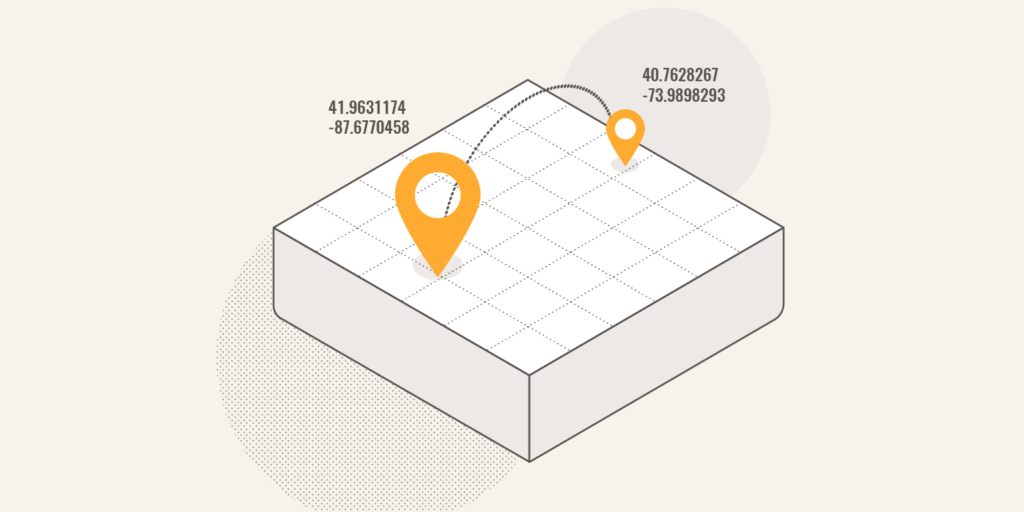
“Calculating distance using MySQL” is a very useful blog post for everyone who works with geographical location data and MySQL. It shows a simple example of how to calculate the distance between two coordinates on a sphere (Earth in particular) within the MySQL itself.
The above will return 1148978.6738241839, which is the distance between the two points in meters.
This functionality is available since MySQL 5.7. Have a look at the documentation of the spacial convenience functions.
MariaDB has similar functionality, but with a slightly different function names. Use ST_DISTANCE() instead of ST_Distance_Sphere(). Have a look at this blog post for more details.
I am a big fan of social apps, especially those that address a particular problem, usually outside of the generic social networks. Unfortunately, many of these apps suffer from the same set of problems – insufficient user base to make them useful, competition from larger apps with overlapping functionality, and feature stagnation.
If I find the application useful, I try to ignore these problems for as long as I can. But, unfortunately, at some point even the best of us give up.
Waze is like a social network for drivers. There are plenty of maps and navigation apps, but Waze went further. The app had the functionality to assist with mapping the roads, reporting police and road hazards, and some basic social and gaming functionality, where you could communicate and compete with other drivers. (The competition wasn’t speed based, but rewarded drivers who contributed the most.)
Waze wasn’t shut down after the acquisition and the deal kind of made since, as Google would get real-time human contributions to compliment its automated ways of Google Maps.
But it didn’t solve the problems of Waze at all, if not made them even worse. More and more people started using Google Maps. The development of Waze slowed down to a crawl. And even the most vital features for such an app were never added.
As far as I was concerned, I could even live without the large user base. But there is one particular feature that kept annoying me until now, which was never added. There is no way to drop a pin on the map. Yes, that’s right, Waze is a map and navigation app without a pin. Instead, you can either search for places to go, or enter a street address to go to.
Cyprus is the country where street addresses are seldom used for navigation. Most of the cities grew out of small villages that overlapped with time. Which means, there is no preset design for the cities, like in the USA with the street-avenue grid. And most of the villages had the streets named after the same people, which, in the city causes lots of confusion with several streets in different parts, named the same. Heck, we even have streets with the same name crossing each other.
Try telling Waze that you are going to your friends house. You know where it is on the map, but you don’t know the exact address. (Yes, you might know the street name, but not the number.) And you’ll know what I mean.
On top of that, with fewer and fewer users contributing to the app, the data gets obsolete. There are places that have closed years ago. There are places that have moved to a different address. And there are plenty of new places that Waze knows nothing about.
And since you’ve got me complaining, here’s another feature that I miss, which is also missing or inadequately implemented in all the other apps I’ve tried – custom repeatable routes with multiple stop points.
Google Maps has a very basic “Commute to” feature, where you can just set your work and home, and then quickly navigate to either one or the other. Waze and many other apps have the same. But that only takes you so far.
Here are two scenarios which are a pain in pretty much every navigation app:
More than two commute entries. Yes, work and home are common destination points for most of the user base. But what about school? Many of us are not 18 anymore and need to drive the kids to or from school. Sometimes, even more often than we navigate to home or work. People might have more than two jobs. Or they might have other destinations that they visit on a daily basis. It might a doctor’s office, or an older relative for a quick check. Why not expand the short list of “Commute to” entries to more than 2. Make it 3 or 5, and that covers most frequent routes for most people.
More than two points in a route. Sure, home to work, and work to home, makes sense. But for over a year I had to commute to work, while picking up two colleagues on the way in, and dropping them home on the way back. Even dropping off the kids to school on the way to work is a common scenario among the parents I know. Why can’t we just connect the dots? Create a new route from one place to another, add a couple of stops in between, and save it in the shortlist for quick access. This will even help with the navigation part as well. The app won’t have to insist on re-routing me on every turn, when I briefly drive in the direction opposite to my office to pick up a colleague.
So for the last couple of month, I haven’t used Waze for my navigation needs. I tried a whole lot of other apps, and after a brief try outs, I decided to use Google Maps for now. It’s far from perfect, but it sucks less than others.
Oh, well. That’s good to know. But that just confirms my decision of letting Waze go and using Google Maps. At least for now. We’ll see what the future brings. Hopefully Google won’t kill the Goolge Maps app, like it did so many others.
Goodbye Waze and thanks for all the good times. I’ve enjoyed our time together, but now it’s time to drive forward. Hello Google Maps. Please learn from the mistakes of Waze. You’ve paid the money already.
what3words is an interesting solution to the problem of the global addresses. What’s the problem, you ask? Well, according to their website:
Poor addressing costs businesses billions of dollars and hampers the growth and development of entire nations.
Around 75% of the world (135+ countries) suffers from inadequate addressing.
4 billion people are invisible, unable to get deliveries or receive aid, and unable to exercise their rights as citizens.
That doesn’t sound too far from the truth. So, how do they solve it?
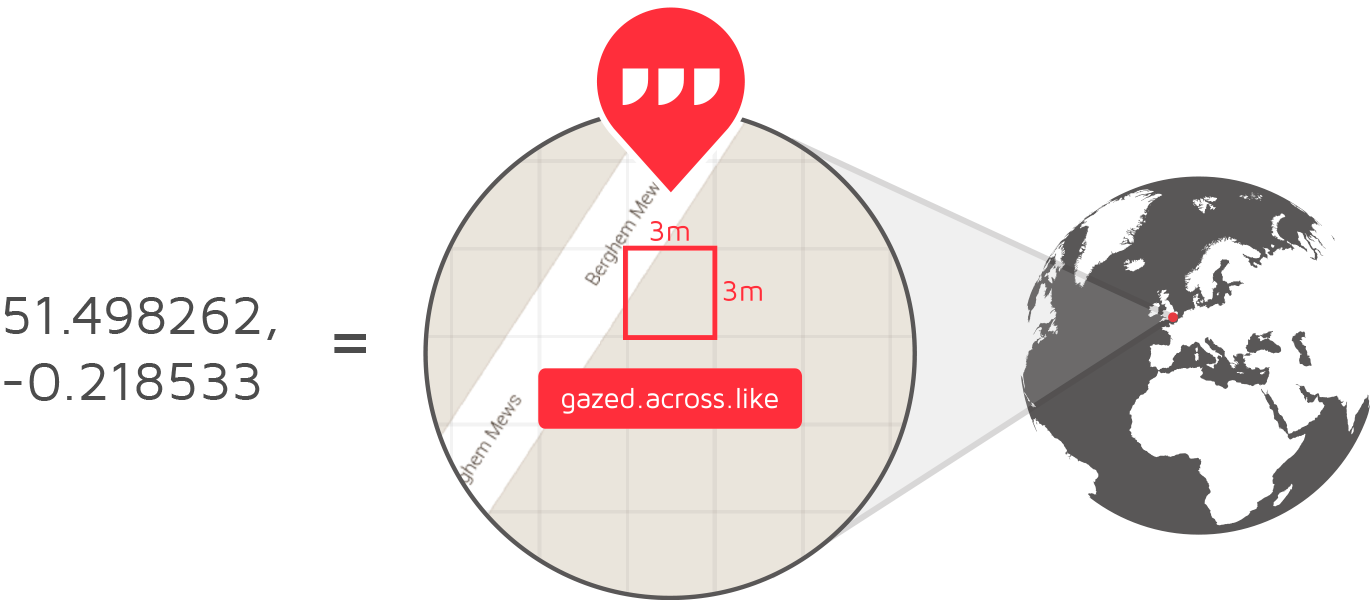
what3words is a global grid of 57 trillion 3mx3m squares.
Each square has a 3 word address that can be communicated quickly, easily and with no ambiguity.
Our geocoder turns geographic coordinates into these 3 word addresses and vice-versa.
Using words means non-technical people can accurately find any location and communicate it more quickly, more easily and with less ambiguity than any other system like street addresses, postcodes, latitude & longitude or mobile short-links.
It’s a very elegant solution. Obviously, it doesn’t solve all of the problems (for example, it does not take height into account, so if you have a 50-floor high apartment block, all 50 floors will share the same squares). But this solution is still valuable and super easy to use.
And it’s fun too! I live around crowbar.land.premises, and I work close to simply.approve.pretty. See, I told you.
Mongol Post, the country’s largest mail provider, has licensed the system from What3Words, and starting in September it will offer customers the option of using the three-word codes. (The company added Mongolian to its first 10 languages; 14 more are coming.)
Why Waze is so incredibly popular in Costa Rica – excellent story, which, I think, is pretty applicable in Cyprus too. There aren’t many people here. And there are even fewer sensible street addresses. We are landmark driven navigation country too.
This website uses cookies to improve your experience while you navigate through the website. Out of these, the cookies that are categorized as necessary are stored on your browser as they are essential for the working of basic functionalities of the website. We also use third-party cookies that help us analyze and understand how you use this website. These cookies will be stored in your browser only with your consent. You also have the option to opt-out of these cookies. But opting out of some of these cookies may affect your browsing experience.
Necessary cookies are absolutely essential for the website to function properly. This category only includes cookies that ensures basic functionalities and security features of the website. These cookies do not store any personal information.
Any cookies that may not be particularly necessary for the website to function and is used specifically to collect user personal data via analytics, ads, other embedded contents are termed as non-necessary cookies. It is mandatory to procure user consent prior to running these cookies on your website.